

Firestick is the single most popular device for IPTV in America, and for good reason. It costs under $50, plugs into any TV with an HDMI port, and runs IPTV Smarters Pro faster than most Smart TVs run their built-in apps. The only problem is that Amazon does not officially allow IPTV player apps in the App Store, so you have to sideload them. Once you know the steps, the entire install takes less than five minutes from unboxing to watching live TV.
This guide walks through the exact process for Fire TV Stick Lite, Fire TV Stick 4K, Fire TV Stick 4K Max, and Fire TV Cube in 2026. You will learn how to enable the right settings, sideload IPTV Smarters Pro or IBO Player Pro, enter your login details, and test the full channel lineup. Every step is written for a beginner with no technical background. If you have never sideloaded an app before, this is the guide to follow.
Before you start, make sure you have three things ready. A Fire TV Stick that is already set up and connected to Wi-Fi, an active IPTV subscription or free trial, and access to WhatsApp on your phone so you can receive your login details and ask for help if you get stuck. If you have not chosen a provider yet, our guide on the best IPTV provider USA breaks down what to look for before you pay, including the trial standard every real service should meet.
Step 1 — Enable Unknown Sources on Firestick
By default, Fire OS blocks apps that do not come from the Amazon App Store. To sideload IPTV Smarters Pro, you first have to unlock that setting. From the Fire TV home screen, go to Settings, then My Fire TV, then Developer Options. Turn on the option labeled "Install Unknown Apps" or "Apps from Unknown Sources" depending on your Fire OS version. You only do this once, so take thirty seconds and get it right.
If you cannot find Developer Options, your Firestick may be hiding it. On some Fire OS builds, you first need to go to Settings, My Fire TV, About, and click on the Fire TV Stick name seven times. This unlocks the hidden menu. After the seventh click, Developer Options appears in the My Fire TV list, and you can enable Unknown Sources from there. This is a standard Android developer shortcut and works on every Fire TV model.
Step 2 — Install the Downloader App
The Downloader app is the tool that lets you install apps from outside the Amazon App Store. From the Fire TV home screen, scroll to Find, then Search, and type "Downloader." The app is published by AFTVnews and has an orange icon with a downward arrow. Click Install and wait about fifteen seconds. When it finishes, click Open and the app asks for storage permission. Allow it, and the Downloader home screen appears with a URL bar at the top.
If you cannot find Downloader in the search results, make sure your Fire TV region is set to the United States in Settings, Preferences, Country. Some Fire OS builds in other regions hide the app. Once the region is set correctly, the app appears immediately.
Step 3 — Download IPTV Smarters Pro
In the Downloader app's URL bar, type the official IPTV Smarters Pro download link that we send you on WhatsApp. It is a direct download URL, not a website address, so the APK file starts downloading immediately. The file is roughly 50 MB, and on a normal home Wi-Fi connection it downloads in under 30 seconds.
When the download completes, a prompt appears asking if you want to install the APK. Click Install. Fire OS may show a warning that says the app is from an unknown source. This is expected and safe, since you are installing a legitimate player that Amazon simply does not allow in their store. Click Install anyway, wait for the app to finish installing, then click Open. IPTV Smarters Pro is now on your Firestick.
If you would rather use a different player, IBO Player Pro and TiviMate install the exact same way. IPTV Smarters Pro is our recommended choice for Firestick because it has the fastest channel zapping, the lowest RAM usage, and the best 4K performance on the entry-level Fire TV Stick Lite.
Best IPTV Players for Firestick in 2026
- IPTV Smarters Pro — fastest zapping, lowest RAM, best for Firestick Lite
- IBO Player Pro — best interface, smooth 4K playback on Firestick 4K Max
- TiviMate — most advanced EPG and recording options for power users
- XCIPTV — lightweight backup player if the main options fail
Step 4 — Enter Your IPTV Login Details
Open IPTV Smarters Pro on your Firestick. The welcome screen shows two login methods: Xtream Codes API and M3U URL. Select Xtream Codes API, which is the format we send. Fill in the three fields. The first field is the server URL, which looks like a domain name. The second is your username. The third is your password. Do not add a trailing slash to the server URL, and do not add any extra spaces.
If you are not sure where to get these details, message our team on WhatsApp. We send them instantly after purchase, along with the exact player link for your Firestick model. Some providers also offer remote activation, where you send a device key and they load everything for you. Both methods work, but entering the login yourself takes about twenty seconds and is faster than waiting for a technician.
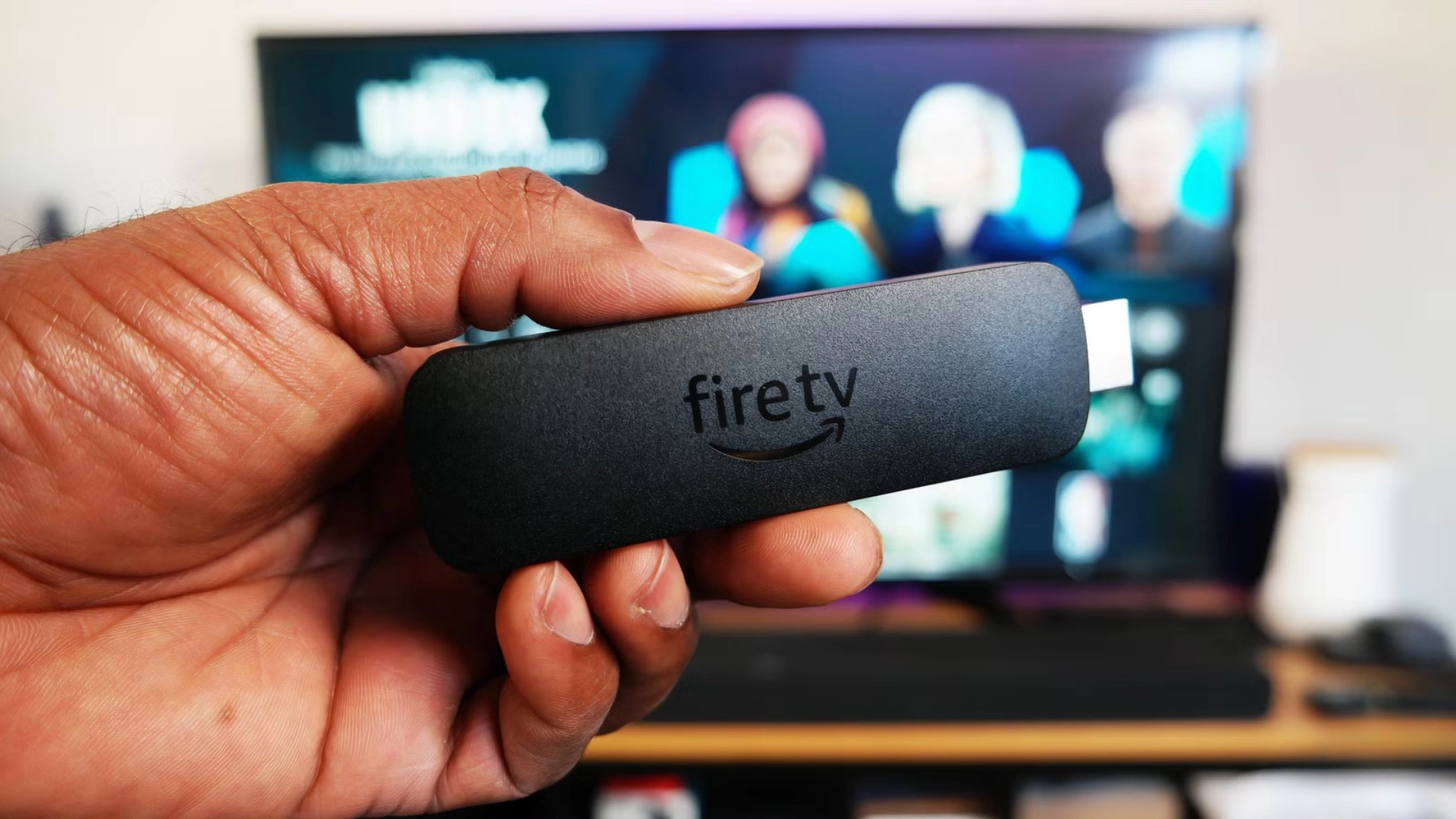
Step 5 — Load Your Channels and Start Watching
After you enter the login and tap Login, IPTV Smarters Pro downloads your full playlist in the background. On a 4K Firestick with a good Wi-Fi connection, this takes about 60 to 90 seconds the first time. You will see a progress bar on screen. When it finishes, the main menu appears with Live TV, Movies, Series, and Catch Up sections. The 7-day EPG guide loads automatically and stays synced every six hours.
Test a few 4K channels first. If playback is smooth, you are done and the entire install took under five minutes from the Downloader step. If you see buffering on live sport, the fix is usually physical, not software. Move the Firestick out from behind the TV, or wire it in with an Ethernet adapter through the OTG port. Our IPTV not working troubleshooting guide walks through the seven-step diagnostic if you hit an issue that this guide does not cover.
Optimizing Your Firestick for IPTV
A few small tweaks turn a Firestick from good to great for IPTV. First, disable the screensaver and sleep timer so the device never goes dark during a long fight card or movie. Second, reduce the Fire TV home screen's video autoplay setting, which consumes bandwidth you need for streaming. Third, clear the app cache every two weeks under Settings, Applications, Manage Installed Applications, IPTV Smarters Pro, Clear Cache. These three changes keep the Firestick responsive for years.
For the smoothest 4K experience, the Firestick 4K Max has a better Wi-Fi antenna and more RAM than the base model. If your household streams IPTV on multiple screens at the same time, the 4K Max handles the extra load without dropping frames. If you are streaming on an older 1080p TV, the Fire TV Stick Lite is enough and costs half as much. If you want to see how Firestick compares to Roku and Apple TV for IPTV, our full setup guide covers every device we support with the same step-by-step depth.
Common Firestick IPTV Problems and Fixes
The most common issue is a "Package appears to be invalid" error during install. This usually means the APK file was corrupted during download. Clear the Downloader app cache, delete the file, and download it again. The second most common issue is IPTV Smarters Pro crashing on startup. This is fixed by uninstalling and reinstalling the app, or by clearing the app cache from Fire TV settings. Both issues are covered in our troubleshooting guide above.
A third issue is the Firestick running out of storage. Fire TV Stick Lite and base 4K models only have 8 GB of internal storage, and Fire OS itself uses half of it. If you install too many apps, IPTV Smarters Pro has no room to store its channel cache. The fix is to uninstall apps you do not use. If you plan to install several streaming apps, buy the Firestick 4K Max, which ships with 16 GB and handles IPTV much more comfortably.
Frequently Asked Questions
05 QuestionsCan I install IPTV on Firestick without a computer?
Yes. You do not need a computer to install IPTV on Firestick. The entire process runs on the Firestick itself using the free Downloader app from the Amazon App Store. You sideload the IPTV player APK directly onto the device, enter your login details, and start streaming. Total time is under 5 minutes from the first step to watching live TV.
Which IPTV player is best for Firestick in 2026?
IPTV Smarters Pro is the best IPTV player for Firestick in 2026. It has the fastest channel zapping, uses the least RAM, and delivers stable 4K 60FPS playback even on the entry-level Fire TV Stick Lite. IBO Player Pro and TiviMate are excellent alternatives if you prefer a different interface or need advanced EPG and recording features.
Is it legal to sideload IPTV on Firestick?
Yes. Sideloading apps on Firestick is a standard feature of Fire OS and is completely legal. You enable the Unknown Sources setting once and install any app you choose. What matters is that the IPTV service you use operates transparently, offers a trial, and honors DMCA takedown requests. A legitimate provider will always meet these standards.
Why does IPTV buffer on Firestick but not on my phone?
Firesticks have weaker Wi-Fi antennas than phones and are usually placed behind a TV where signal is already degraded. The same Wi-Fi that works on your phone in the living room can lose half its throughput behind a television. The fix is to wire the Firestick in with an Ethernet adapter through the OTG port, or move it out from behind the TV and closer to the router.
Do I need a VPN to install IPTV on Firestick?
No. You can install and use IPTV on Firestick without a VPN. A VPN is only useful if you experience buffering during peak evening hours, which is a sign of ISP throttling, or if you want to hide your streaming activity from your ISP for privacy reasons. If your IPTV streams smoothly at all hours, you do not need a VPN.
Our Honest Take
Installing IPTV on Firestick is one of the easiest things you can do with the device, but only if you follow the right steps in the right order. Most people get stuck on the Unknown Sources setting or download a corrupted APK, and then assume the whole thing is broken. Once you have done it once, you will never need to think about it again.
If you want a provider that streams 36,000+ channels in 4K, includes every major sport, and answers WhatsApp within minutes during setup, our US subscriptions start at $29 for three months with no contract and no equipment to rent. Every tier includes priority routing during peak hours, which is where cheap services fall apart. Message us on WhatsApp and we will walk you through the Firestick install step by step, or browse the pricing page to see every plan option.