
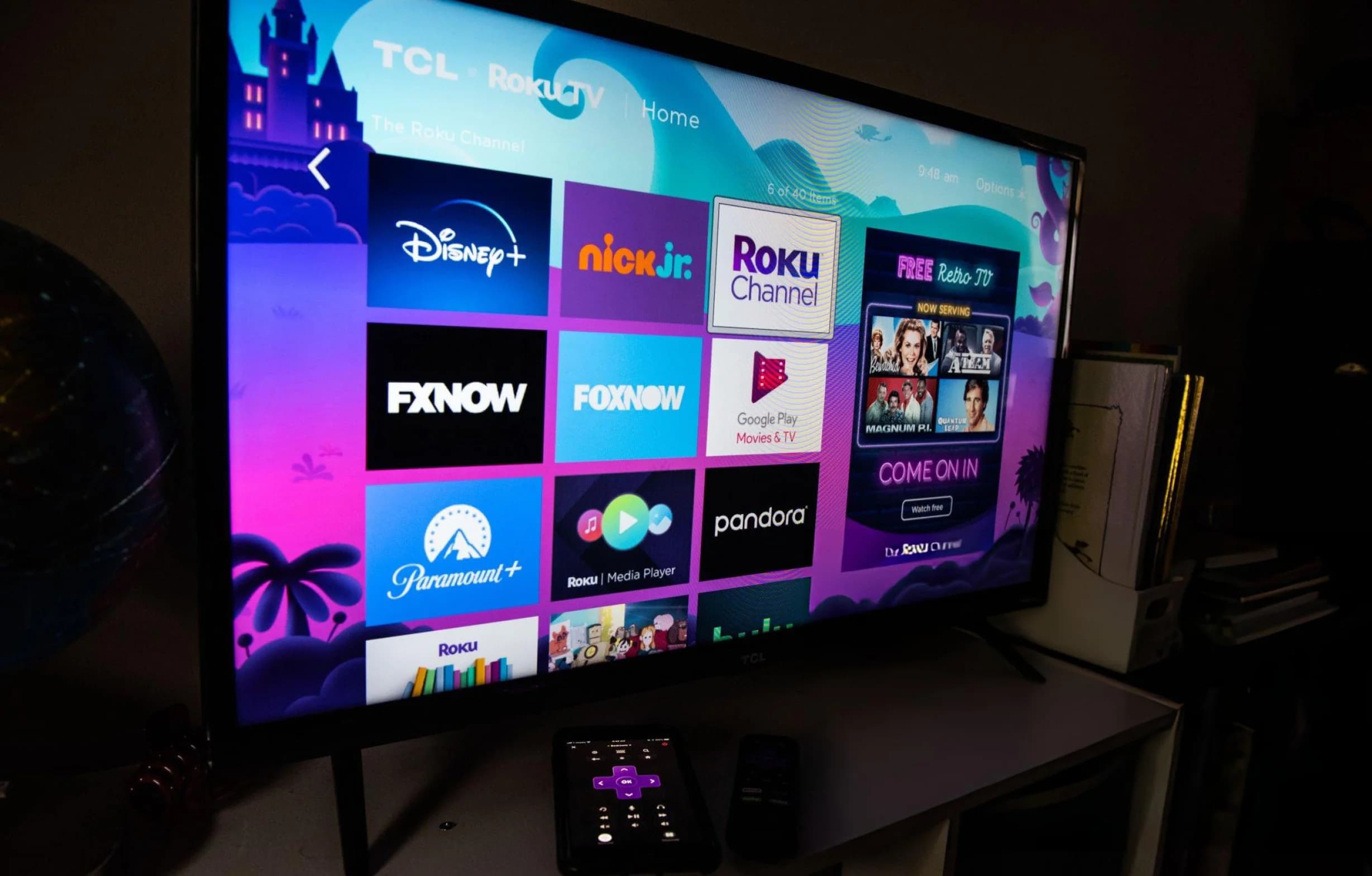

Roku is one of the most popular streaming platforms in America with more than 80 million active accounts. It has a clean interface, fast navigation, and works on almost every TV brand. The one thing Roku does not have is sideloading. Unlike Firestick, you cannot install apps from outside the Roku Channel Store, which means IPTV player apps like IPTV Smarters Pro are not directly installable. That single limitation is why so many Roku owners think IPTV is impossible on their device.
It is not impossible. It just works differently. There are three proven methods that let any Roku TV, Roku Stick, Roku Express, or Roku Ultra stream IPTV in 2026. Each has trade-offs in setup time, image quality, and convenience. This guide walks through all three in order, from the easiest method to the best long-term solution, so you can pick the one that fits your setup.
Before we start, a quick note on why Roku blocks sideloading. Roku runs on its own operating system, not Android, so it does not accept APK files the way Firestick does. Every app on a Roku device has to pass Roku's own certification process. IPTV players are legal software, but because Roku wants to keep its platform strictly controlled, they do not certify most of them. The workarounds below get around this limitation without breaking any Roku rules. If you are still deciding between Roku and Firestick, our guide on the best IPTV provider USA covers what to look for in a service that works well on both platforms.
Method 1 — Screen Mirroring from the Roku Mobile App
The simplest method to get IPTV running on a Roku TV is screen mirroring from the Roku mobile app. It works on every Roku device made in the last six years, requires no extra hardware, and takes about two minutes to set up. You install the free Roku app on your iPhone or Android phone, connect it to the same Wi-Fi network as your Roku TV, and use the Screen Mirroring option to display your phone screen on the big TV.
Once mirrored, you can open IPTV Smarters Pro or any other IPTV player on your phone, and the stream plays on your Roku TV. Picture quality depends on your phone's output resolution and the strength of the Wi-Fi connection, but for most modern phones it handles Full HD easily. The main downside is that your phone becomes the remote, and if you take a call, the stream pauses. It is a good temporary solution, or a permanent one if you only watch IPTV occasionally and do not mind controlling playback from your phone.
Method 2 — Screen Cast from a Windows or Mac Computer
If you would rather not tie up your phone, the second method uses a laptop. Every Roku device supports Miracast from Windows and AirPlay from Mac. On Windows, press Windows key + K, select your Roku TV from the list, and the laptop screen appears on the TV. On Mac, use the AirPlay icon in the menu bar and choose your Roku device. Then open the IPTV player on your laptop and the stream shows on the Roku TV.
This method gives you better image quality than phone mirroring because laptops output at Full HD or 4K native resolution. It also lets you use your phone freely while the stream plays. The downside is that you need a laptop nearby and connected to the same Wi-Fi network. For households that already use a laptop for work or school, this is a practical long-term setup, especially if the laptop stays in the same room as the Roku TV.
Method 1 vs Method 2 — Quick Comparison
- Method 1 (Phone mirror): fastest setup, no extra hardware, ties up your phone
- Method 2 (Laptop cast): better image quality, frees your phone, needs a laptop on Wi-Fi
- Both methods: work on every Roku device made since 2020 with no Roku account changes
Method 3 — Plug a Firestick Into Your Roku TV (Best Long-Term)
The best long-term solution for streaming IPTV on a Roku TV is surprisingly simple. Every Roku TV has at least one free HDMI port. A Firestick 4K Max costs under $50, plugs into that HDMI port, and turns your Roku TV into a full IPTV device. You never have to fight with Roku's app restrictions, because the Firestick runs its own operating system and accepts IPTV players directly. Switching inputs between Roku and Firestick takes one button press on the TV remote.
This method gives you the same native IPTV Smarters Pro experience that Firestick owners enjoy, with no screen mirroring involved and no laptop or phone required. It also unlocks the Firestick's 4K HDR streaming and its better Wi-Fi antenna, which handle live sport more smoothly than Roku's built-in Wi-Fi. In practice, most American households that try Method 1 or 2 eventually move to Method 3 because it removes every friction point.
The full step-by-step install process for IPTV Smarters Pro on Firestick takes under five minutes from start to finish. We covered it in detail in our Firestick install guide, including the exact settings to enable and the best Ethernet adapters to use for stable playback.
Comparing the 3 Methods
All three methods work, but they are suited to different situations. Method 1 is best for occasional viewing or a quick test. Method 2 is best for households that already have a laptop in the same room. Method 3 is best for anyone who watches IPTV regularly and wants the smoothest, highest-quality experience with zero friction. There is no wrong answer, but there is a right answer for your specific setup.
| Method | Setup Time | Best For | Quality |
|---|---|---|---|
| Phone Mirror | 2 minutes | Occasional viewing | Good (depends on phone) |
| Laptop Cast | 3 minutes | Households with a laptop | Very good (native HD) |
| Firestick HDMI | 5 minutes | Daily IPTV watching | Excellent (4K HDR) |
Setting Up Your IPTV Subscription on Roku
Whichever method you choose, you need an active IPTV subscription with login details in hand before you start. These are usually sent over WhatsApp in the Xtream Codes API format: a server URL, a username, and a password. Keep that message open on your phone so you can copy and paste the details without typing errors. Typos in the server URL are the number one cause of login failures on both Roku mirroring and Firestick installs.
For Method 1 and Method 2, install IPTV Smarters Pro or IBO Player Pro on your phone or laptop first, enter the login details there, and confirm the channel list loads correctly. Once it works on the small screen, mirror or cast to the Roku TV. For Method 3, install IPTV Smarters Pro on the Firestick using our Firestick install guide, and enter the login directly on the Firestick.
Troubleshooting Roku IPTV Issues
The most common Roku IPTV problem is screen mirroring that connects but shows a black screen. This almost always means the phone or laptop is on a different Wi-Fi network than the Roku TV. Check that both devices are on the same SSID, not one on 5GHz and one on 2.4GHz from the same router, and not one on a guest network. Roku mirroring requires the devices to be on the same network segment.
The second most common issue is buffering during screen mirror. This happens because mirroring doubles the Wi-Fi load: the phone or laptop has to receive the stream and then re-transmit it to the Roku TV. If you see constant buffering, the fastest fix is switching to Method 3 with a Firestick, which uses only one Wi-Fi path. If you must stay on Method 1 or 2, wire the phone or laptop into Ethernet, and place the Roku TV close to the router.
Frequently Asked Questions
These are the questions Roku owners ask most often before they try IPTV for the first time. If your question is not here, message our WhatsApp support line and we will answer it in a couple of minutes, usually with a screenshot or a short video walkthrough for your exact device.
Frequently Asked Questions
05 QuestionsCan you get IPTV on a Roku TV?
Yes, but not by installing an IPTV player directly on the Roku itself. Roku does not allow sideloading, so you use one of three methods instead: mirror your phone screen to the Roku, cast from a Windows or Mac laptop, or plug a Firestick into the Roku TV HDMI port. All three work on every Roku TV, Roku Stick, Roku Express, and Roku Ultra made since 2020.
Why can I not install IPTV Smarters on Roku?
Roku runs its own operating system, not Android, so it does not accept APK files the way Firestick does. Every app must pass Roku certification, and IPTV player apps like IPTV Smarters Pro are not certified because Roku keeps strict control over its app store. The three methods in this guide work around that limitation without breaking any Roku rules.
Is screen mirroring IPTV from a phone to Roku good enough?
It is good enough for casual viewing, but not for daily use. Phone mirroring ties up your phone, adds a second Wi-Fi hop that can cause buffering, and caps image quality based on the phone screen. For occasional use it works fine. For daily IPTV watching on a Roku TV, plugging a Firestick into the HDMI port delivers much better quality with zero friction.
Which method is best for Roku IPTV streaming?
Plugging a Firestick 4K Max into your Roku TV HDMI port is the best method. It costs under $50, installs in five minutes, and gives you the same native IPTV Smarters Pro experience Firestick owners enjoy, with no screen mirroring and no laptop or phone involved. Switch inputs with one button press and watch IPTV as if the Roku TV were a Fire TV.
Do I need a Roku account to use IPTV on a Roku TV?
You need a Roku account to set up the TV itself, but you do not need Roku to recognize or approve your IPTV player. Methods 1 and 2 work through Roku screen mirroring and casting, which do not require any app install. Method 3 uses an external Firestick, so your Roku account is not involved at all. Either way, no Roku app store approval is needed.
Our Honest Take
Roku is a great streaming platform that was never built for IPTV. Roku owners who want to watch live sport, movies, and international channels have three real options, and all three work. The phone mirror method is fine for testing. The laptop cast method works well if a laptop is already nearby. The Firestick HDMI method is the best long-term choice because it removes every friction point and delivers native 4K quality.
If you want a provider that streams 36,000+ channels in 4K, includes every major sport, and answers WhatsApp within minutes during setup, our US subscriptions start at $29 for three months with no contract and no equipment to rent. Our team will help you set up on Roku by any of the three methods above, or on Firestick, Apple TV, or Smart TV. Browse the pricing page to see every plan option, and message us on WhatsApp when you are ready to start.